Right click on the photo in your folder and choose “open with” you will get a list of programs, you need to choose the one called paint, the icon is like an artist’s pallet. (When the picture opens you will probably only be able to see one corner of it).
On the menu bar in paint there is a box labelled select. If you click on select there is an option called select all, you choose that. Then just next to select is an option called re-size. Click on re-size and change the percentage from 100 to something like 20. (This has ruined your photo, but don’t worry you will not save it
 ). On the other side of the select button is the cut (scissors) Icon. Press this and your photo will disappear. Then click the file menu (Top left) and press the “new” button.
You will be asked if you want to save the picture, say NO
. A new small blank picture should appear. ( a big blank picture appears, grab the bottom right hand corner of it and drag it to small). Next click the paste clip board icon (just next to select). Your picture should reappear, but much smaller than it was. You will need to save this photo under a different name, and then you can upload it.I know this seems complicated, but it gets easy with a bit of practice
 . There is probably a faster way to do all this, may be some one more “computer-ish” than me will be able to help us with, but this way will definitely do the job for now. Good luck, looking forward to seeing the photos
  .
. wheeledbeast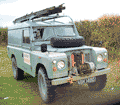
 together with their story